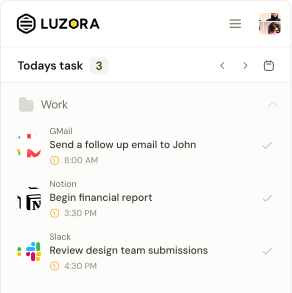

Luzora has always lived where your work happens: inside the browser.
Version 1.0.8 takes that idea further by giving Luzora a place that can remain open beside the page you are using. Instead of reopening a small popup every time you want to check a task, create a reminder or use Luzora Bolt, you can now keep your workspace within reach in the browser’s side panel.
This is a focused update, but it changes the rhythm of using Luzora. The product no longer needs to appear for a moment and disappear. It can stay with you while you work.
Here is what changed.
Luzora now has a side panel
The toolbar popup is useful when you want to do something quickly. It opens, helps you act and gets out of the way. But some work needs more continuity.
You may want to review today’s tasks while researching, create several reminders without losing sight of the page in front of you, or capture an intention the moment it appears.
Version 1.0.8 introduces a complete side-panel experience for that kind of work. It carries the same Luzora experience as the popup, including Home, your task list, task creation, settings and Luzora Bolt. It remains available beside the current webpage, giving you more room without turning Luzora into a separate destination.
From Settings, you can switch from the popup to the side panel. If you prefer the compact experience, you can switch back at any time. The choice belongs to you.
Your shortcuts now understand where Luzora is open
A persistent interface is only useful when it behaves predictably.
Before version 1.0.8, a shortcut could not reliably tell whether Luzora was already active in the side panel. In some cases, the shortcut could address the panel and still open the popup, leaving two versions of Luzora on screen.
That is now fixed at the routing level. When you use a shortcut, Luzora first checks whether an active side panel is available in the current browser window:
- If the side panel confirms that it is active, Luzora uses that panel.
- If no side panel responds, Luzora opens the toolbar popup.
- It does not deliberately open both for the same action.
The same rule applies to Luzora Bolt. The live panel must acknowledge the request before the extension decides where the action belongs, so the behaviour remains dependable even after Chrome restarts the background service worker.
One shortcut. One destination. One active Luzora experience.
Luzora Bolt feels more natural in the panel
Luzora Bolt is designed to turn the page in front of you into an action you can return to.
While the page remains visible, Bolt can prepare a task from its address, title, icon and page context without forcing you to leave the workspace you are using. You can edit the suggested action, add a date or recurrence, and save it while the original page remains beside Luzora.
The panel also keeps up when you switch browser tabs. Bolt uses the page you are currently viewing rather than remaining attached to the tab where the panel was first opened.
The page and the intention stay in view together.
Drop a link. Turn it into a task.
You can now drag a web link into Luzora from a page, the address bar or another compatible browser surface. Luzora recognises the destination and opens a Bolt draft around it. From there, describe what you want to do and decide when you want to return.
This is useful for articles you want to finish, dashboards you need to check, files you need to review, forms you need to submit or any browser destination that represents unfinished work.
Link drops are handled carefully. Luzora accepts normal HTTP and HTTPS destinations while rejecting executable links, embedded data and addresses containing credentials.
A side panel that still respects focus
Moving the full interface into a taller, persistent space revealed small interactions that matter more on compact and touch-enabled screens.
Version 1.0.8 improves how task fields retain focus and scroll position during editing. It also keeps confirmation sheets, including logout and unfinished-draft warnings, centred within the available panel rather than treating the interface like a fixed-size popup.
The side panel is not merely a stretched copy of the old window. It is the same product adapting to a different way of working.
Auto Return is more dependable across browser themes
The Auto Return notice now resolves the browser’s colour preference when it appears and applies the appropriate presentation directly. This keeps the countdown readable and consistent in light and dark environments without relying on the host page to interpret its theme.
Auto Return messages also reject communication that does not come from Luzora itself. The reminder remains isolated from the surrounding page while preserving the controls to cancel the return or go immediately.
A tighter security boundary
Keeping Luzora open for longer makes clear boundaries even more important.
Version 1.0.8 strengthens the extension’s Content Security Policy. Extension pages can connect only to the services Luzora uses for account sync and product analytics. Embedded objects and frames are blocked, base-page rewriting is blocked, and other pages cannot frame the extension.
The side-panel messaging also validates the sending extension, the target browser window and a unique request identifier before treating a panel as active.
These changes are mostly invisible, as good security work often is. Their purpose is to ensure that the convenience of a persistent workspace does not loosen the rules around what the extension accepts or communicates with.
A cleaner release
Version 1.0.8 removes assets and experimental files that are not used by the published extension. Even with the complete side-panel interface and its new controls, the final release package is smaller than the previous package.
We also replaced the old Reddit shortcut in About Luzora with Telegram, making it easier to reach the active Luzora community.
Choose how Luzora works with you
Version 1.0.7 improved the beginning of the Luzora journey. Version 1.0.8 improves what it feels like to keep Luzora with you after that beginning.
Use the popup for a quick check. Use the side panel when you want your tasks and the page in front of you to share the same workspace. Move between them when your work changes, and let the shortcuts follow that choice without opening two interfaces at once.
Luzora is still a tool for remembering what to do, where to do it and when to return.
Now it can stay beside you while you do it.